Atlas panel — edit strv.com by pointing at it
Atlas panel is a small chat panel that lives in the corner of every page while the website runs on your own Mac. You point at something on the page, say what should change, and Atlas changes it. The page updates in front of you while you watch.
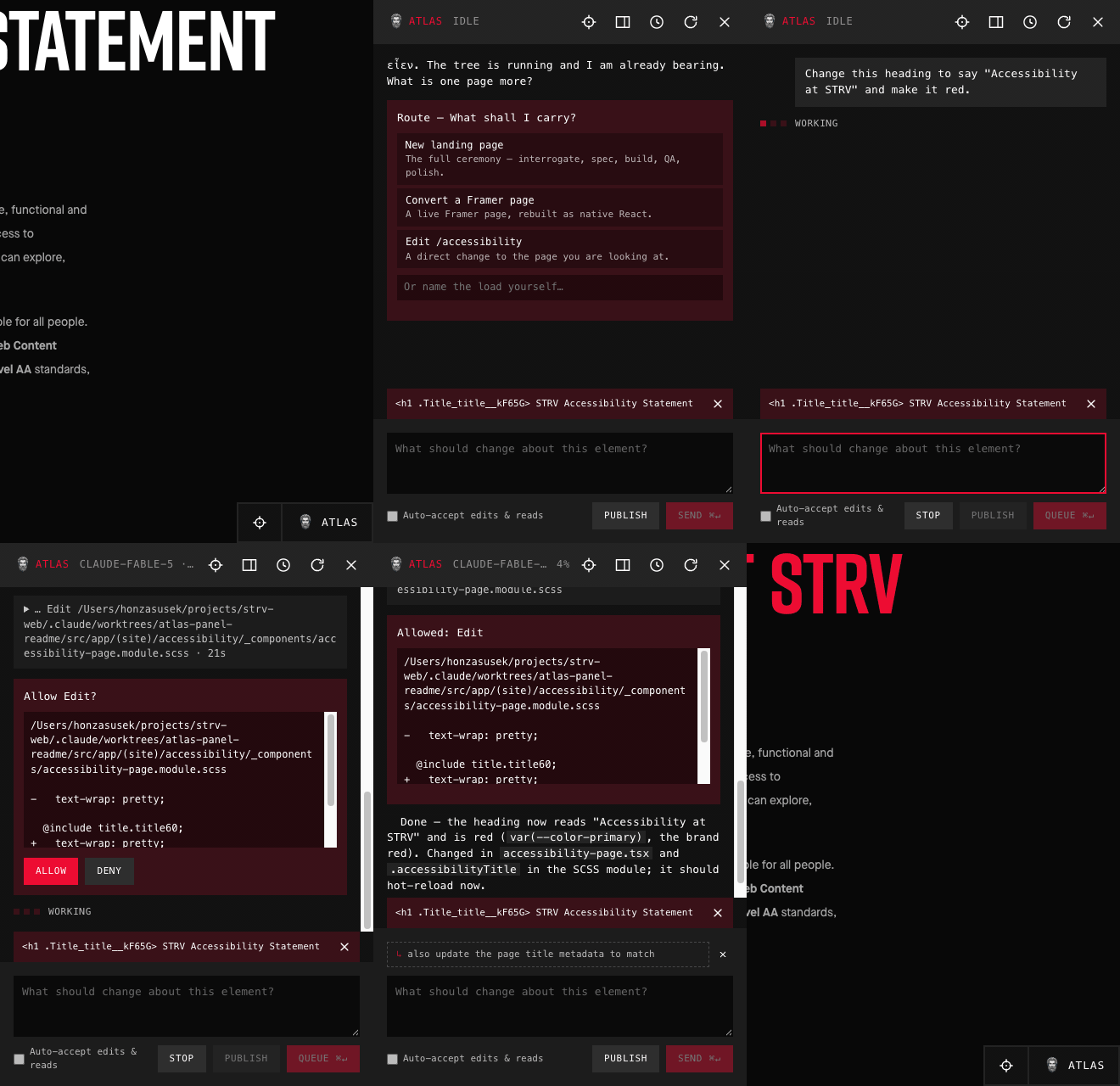
Above: pick the heading with the crosshair, type "Change this heading to say 'Accessibility at STRV' and make it red", approve the two edits, and watch the heading turn red behind the panel.
Nothing leaves your Mac until you decide to publish. Atlas only exists on the local development server — it never appears on the live strv.com.
Before you start
You need two things:
- The website running locally. The simplest way is to ask Claude (in the strv-web project, Code mode): "open the Atlas panel". It checks the setting, starts the local server and hands you a
localhostlink. If you prefer to do it yourself: make sure.env.localcontains the lineNEXT_PUBLIC_ATLAS_PANEL=1, then runyarn devand open http://localhost:3000. - A Claude sign-in on this Mac. Atlas runs Claude Code behind the scenes. If this Mac has never signed in, the panel opens with a Sign in to Claude card instead of a greeting. Click Sign in with Claude, finish in the browser tab that opens, and come back — the panel picks up where it left off. You only do this once.
If you added the setting while the server was already running, restart the server — the panel is baked in at start-up.
Opening the panel
Every page has two buttons fixed in the bottom-right corner:
- ⌖ (crosshair) — pick an element on the page. More on this below.
- Atlas — open the chat.
The panel opens over the right side of the page. Atlas greets you and offers a short menu, Route — What shall I carry?:
- New landing page — the full process: questions, a written spec, the build, QA.
- Convert a Framer page — rebuild a live Framer page natively.
- Edit /the-page-you-are-on — a direct change to what you are looking at.
- Or type your own request in the box at the bottom.
You can ignore the menu entirely. The text box at the bottom always works, and Atlas answers in its own voice either way.
Point at something and change it
This is what Atlas is best at. It is what the animation at the top shows.
- Click the ⌖ crosshair in the corner (or the same icon in the panel header). Your cursor turns into a crosshair and a red box follows the mouse across the page, labelled with what it is over and how big it is. Press Esc to stop picking.
- Click the thing you want to change — a heading, a paragraph, a button, an image, a whole section. The panel opens and a bar above the text box shows what you picked, for example
<h1> STRV Accessibility Statement. The little ✕ on that bar clears the pick. - Say what should change. The placeholder reads What should change about this element? Write it the way you would tell a colleague:
- "Make this red."
- "Rewrite this so it is half as long and less formal."
- "Change the button text to 'Book a call' and point it to /contact."
- "Add 20px more space above this."
- "Replace this image with the one at public/team-2026.jpg."
- Send with ⌘ + Enter (Ctrl + Enter on a non-Mac keyboard). Plain Enter starts a new line, so you can write several sentences.
- Watch it work. Rows appear in the transcript showing what Atlas is doing — reading a file, editing a file, running a check. A row that takes more than a few seconds shows a running timer.
- Approve the change. Before a file is edited, Atlas stops and shows Allow Edit? with the exact before-and-after of the change. Click Allow or Deny. If you would rather not be asked for every edit, tick Auto-accept edits & reads under the text box — file edits and read-only steps then go through on their own, while anything that runs a command on your Mac still asks.
- The page updates in place. No reload needed. A closing line reads something like Done · 63.9s · $0.86 — how long the turn took and roughly what it cost. Often a suggested follow-up appears above the text box (for example ↳ also update the page title metadata to match); click it to put that text in the box, or dismiss it with the ✕.
The picked element stays selected until you clear it, so you can say "now make it bigger" without picking again. Pick something else at any time with the crosshair. The prompt is about one thing at a time: picking an element also drops a metadata field you had attached (see below), and attaching a field drops the picked element.
Attach the page's metadata
Not everything on a page is visible. The title in the browser tab, the description search engines show, the card Slack or LinkedIn unfurls when the link is shared — those live in the page's metadata, and Atlas can change them too.
Whenever Atlas is switched on, a small metadata tab sits at the top-left corner of the page — with the panel open or closed, however far you have scrolled. Click it and the page jumps to its top, where a list rolls down and pushes the page below it out of the way: the title, description, canonical link and robots rule under Page, the sharing cards under Open Graph and Twitter, any structured data under Structured data, and the rest under Other. The list shows every field at full height; a long one simply makes the page longer.
- Click a field to add it to the prompt. The panel opens if it was closed, and a chip appears above the text box, for example
og:description STRV is a design and engineering team…. One field is attached at a time: clicking another field swaps it in, and so does picking an element with the crosshair (the field makes way for the element, and the other way round); click the attached one again (or the ✕ on its chip) to take it back out. The small copy button right after a value puts that value, in full, on your clipboard instead. Esc rolls the list back up, and so does clicking the tab again. - Say what should change. The placeholder reads What should change about this metadata?:
- "Rewrite this description so it mentions the Prague team."
- "Change the title to 'Careers at STRV' — keep the suffix."
- "The sharing image is the wrong one; use public/og/careers.png."
Atlas knows where each field is defined in the code, so it edits the source rather than the rendered page. Like a picked element, the attached field stays until you clear it or start a new session.
Asking without pointing
You do not have to pick an element first. With nothing selected the placeholder reads What should change on this page?, and you can simply describe the change:
- "Add a three-column benefits section under the hero."
- "The footer overlaps the last section on mobile — fix it."
- "What does this page look like at 375px wide?"
Typing / as the first character opens a list of the project's skills — the same recipes described in the onboarding guide, such as /landing-page-create, /landing-page-qa or /add-hubspot-form. Pick one with the arrow keys and Enter.
The buttons in the header
From left to right, next to the Atlas name (and the model and session it is running on):
| Button | What it does |
|---|---|
| % | How full the conversation's memory is. It turns orange near the top; the conversation is summarised automatically when it fills, and you will see a note in the transcript when that happens. |
| ⌖ | Pick an element on the page (same as the corner button). |
| ▯ | Dock as a sidebar. The page shrinks and sits beside the panel instead of under it. Drag the divider to make the page narrower or wider — a quick way to check how a change looks at tablet or phone width. Press it again to undock. |
| 🕓 | Previous conversations. The last twenty conversations, newest first. Click one to resume it, or delete it with its ✕. The greeting also offers Resume the last session while one exists. |
| ↻ | New session. Clears the transcript and starts fresh. The old conversation is kept in Previous conversations. |
| ✕ | Close the panel. Your conversation stays exactly where it was; open the panel again to continue. |
Under the text box:
- Auto-accept edits & reads — see step 7 above.
- Publish — build, commit, push to GitHub and open a pull request with a preview link for the page you are working on. It asks first: Publish this page? … Work leaves this machine. This is the one button that sends anything off your Mac.
- ▾ next to Publish → Discard changes — the opposite of Publish. It throws away everything changed on your Mac, deletes the branch the work lived on (and, if you had published, its GitHub branch and pull request), and puts the site back on
main, freshly updated. It asks first and spells out exactly what will go — the number of changed files and the branch name — and then starts a new session. - Send ⌘↵ — or Queue ⌘↵ while Atlas is still working, which lines the message up to go next. Stop interrupts the current turn.
Undoing things
- Every message you sent has a small ⟲ on it. Click it to rewind to that point: everything after it is discarded and your original text is put back in the box so you can rephrase. Atlas then checks which files those later turns changed and offers Restore files or Keep files.
- You can also just say "undo that" or "put the heading back the way it was".
- Until you press Publish, every change is only on your Mac.
- To abandon a whole piece of work rather than a few turns, use Discard changes in the ▾ menu next to Publish. Unlike rewind, this cannot be undone.
Good to know
- Images. Paste a screenshot or drop an image file onto the panel and it travels with your next message — handy for "make it look like this". Up to six per message.
- Reloading is safe. The conversation survives a page reload in the same tab, and if Atlas was mid-task it picks the task back up. Closing the tab ends the live conversation; the transcript is still in Previous conversations.
- Uncommitted work warning. The working tree already has N uncommitted files… means there are other unsaved changes in the project. Nothing is wrong — Atlas is just telling you its edits will sit alongside them.
- Usage limits. A banner reading Approaching the usage limit or Rate limited — sends will fail means the Claude account is near or over its allowance; it shows when the limit resets.
- Idle time. After about fifteen minutes without a message Atlas goes to sleep to save resources. Your next message wakes it with the conversation intact — the first reply just takes a moment longer.
When something is off
| What you see | What to do |
|---|---|
| No Atlas button in the corner | The panel is switched off or the server predates the setting. Ask Claude to "open the Atlas panel", or add NEXT_PUBLIC_ATLAS_PANEL=1 to .env.local and restart yarn dev. |
| Sign in to Claude card | Click Sign in with Claude and finish in the tab that opens. If the tab cannot reach your Mac, use Paste a code instead and paste the code it shows you. |
| This Claude Code build can't sign in from the panel | Open Terminal, run claude once and complete the sign-in there, then click Check again. |
| The running turn is gone (dev server restarted?) | The local server was restarted mid-task. Send your message again. |
| A turn ends with Failed | Read the reason under it. A message about the model or a version means the project's Claude tooling needs an update — ask a developer. |
| Atlas edited the wrong thing | Rewind with ⟲, pick the element more precisely with the crosshair, and say what you mean in one more sentence. |
For developers: how the panel is wired (the session process, the API routes, the sign-in flow) is described in the project's CLAUDE.md under Atlas Panel.